Team members and roles
Invite colleagues to your practice, choose whether they're an admin or a member, and remove people who are no longer on your team.
Everyone in your practice can work in Swyp with their own account. That way your assistant can order too, without you sharing your password.
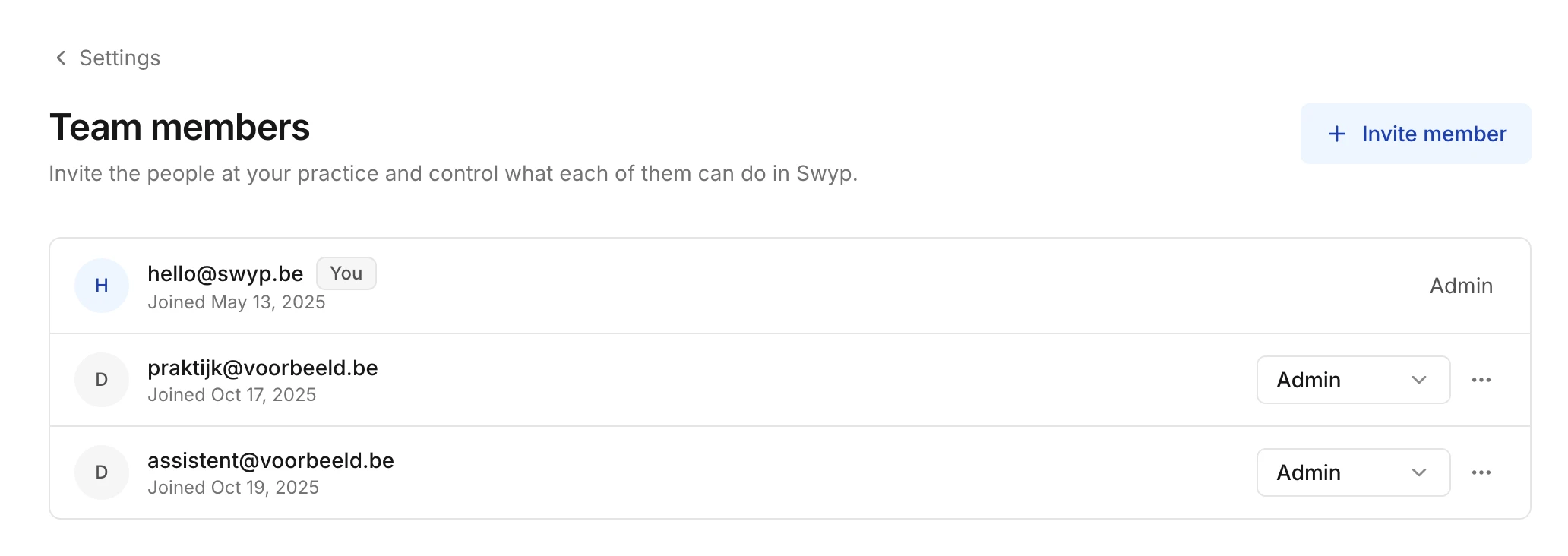
Roles
Each team member is an Admin or a Member.
- A member searches for products, compares prices, orders and keeps track of inventory. A member can also connect suppliers and update their sign-in details.
- An admin can do all of that, and can also invite team members, change their role and remove them, change the practice name, set a year-end rebate, view the activity log and delete the practice.
Only give the Admin role to people who help manage your practice.
Invite a colleague
Admins only Only admins can invite colleagues.
Open the invitation window
In Team members, click Invite member.
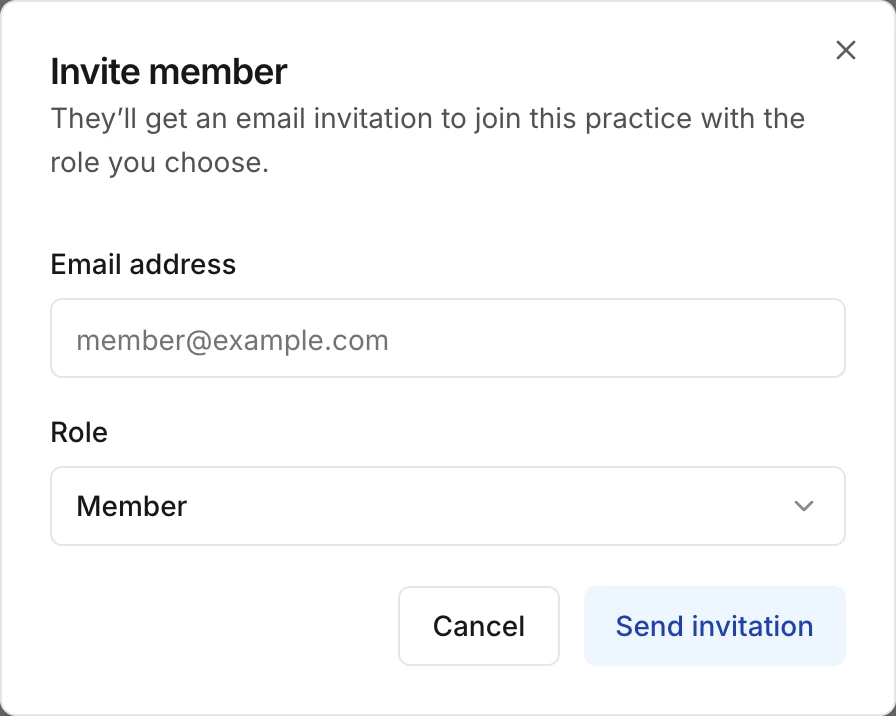
If your colleague doesn't have a Swyp account yet, they get an email to activate one. That email is in the same language as your account. If your colleague already has an account, they get an email saying your practice has been added, and they can switch to it right away.
Change a role
Admins only Choose a different role for the team member in the dropdown. The new role applies right away.
Remove a team member
Admins only Click the three dots next to the team member and choose Remove member. Once you confirm, that person immediately loses access to your practice, your orders and your settings. You can invite them again later.
You can't remove yourself, and a practice always keeps at least one admin.
Read next
New to Swyp? Try it free for 30 days. Create an accountSee pricing
Was this page helpful?
Last updated on