Storage locations
Record where your products are kept, from cabinet to shelf, so you find them faster and can count per location.
With storage locations, you record where each product is kept, for example in a treatment room, a cabinet and on a shelf. You then find products faster, and you can filter, print labels or count per location.
Create locations
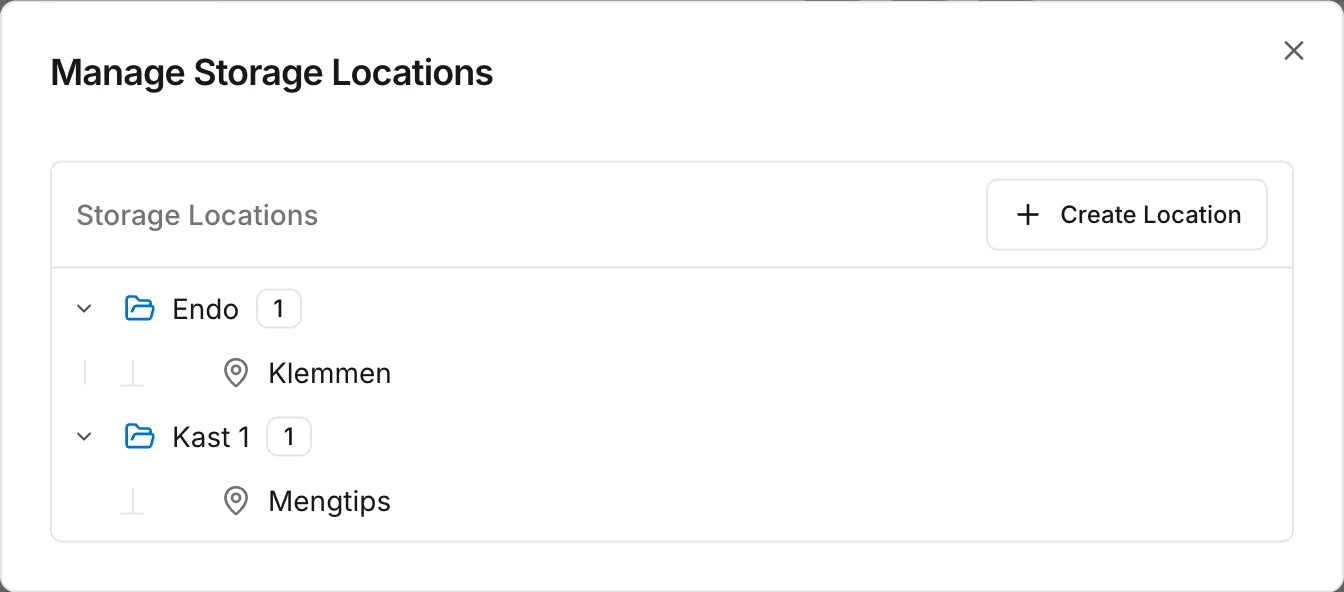
On the inventory page, click the three dots and choose Manage storage.
- Click Create Location for a top-level location, such as a room.
- Click the plus next to a location to Add sub-location, such as a cabinet in that room or a shelf in that cabinet.
You can create as many levels as you like.
Give a product a location
Choose the storage location when you start tracking a product, or later through the gear icon on the product's card.
Rename or delete a location
Click the three dots next to the location and choose Edit or Delete.
Note
Filter by location
On the inventory page, click Filters and choose a storage location. You then see the products in that location and in all the sub-locations below it.
Read next
New to Swyp? Try it free for 30 days. Create an accountSee pricing
Was this page helpful?
Last updated on