Scout
Scout compares your whole cart across all your suppliers and suggests how to order the same items for less, shipping included.
Scout finds the cheapest way to split your whole cart across your suppliers. It compares exactly the same products, counts the shipping costs and suggests which items you're better off ordering from another supplier. You see every suggestion and choose what you apply. Read more about Scout on swyp.be.
Scout works as soon as you've connected at least two suppliers.
Have your cart checked
While your cart fills up, Scout already checks in the background whether it can be cheaper. If Scout finds a saving, you see it in your cart, below the subtotal. For a bigger saving, a percentage is shown as well.
Open Scout
In your cart, click Review with Scout. Scout checks your prices at all your connected suppliers.
Review the suggestions
Each suggestion moves an item from one supplier to another. At the top, you see how much you save in total, shipping included. All suggestions are switched on; switch off what you don't want to apply.
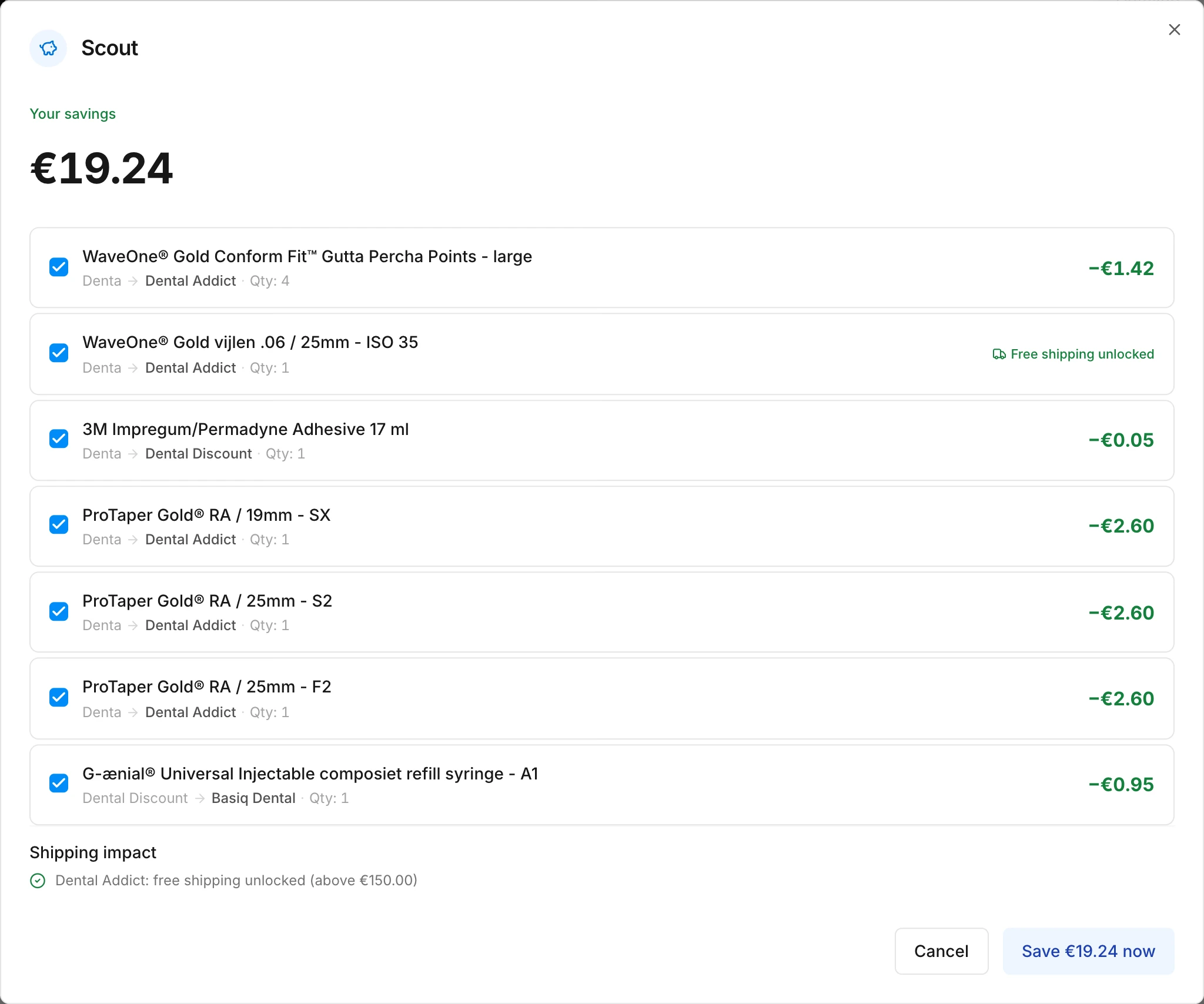
Apply the suggestions
Click Save … now. Scout adds the items at the new supplier and removes them from the old one.
If Scout doesn't find anything cheaper, you see You're already getting the best price.
How Scout calculates
- Exactly the same product. Scout never suggests a different brand or a different product.
- Shipping costs count. Sometimes Scout moves an item that's slightly more expensive at the new supplier, because that gets you free shipping there, or because you skip a supplier entirely and don't pay its shipping costs. Your total still goes down. Such a suggestion is marked with a label like Free shipping unlocked.
- Only what can be delivered. Scout doesn't suggest a supplier for products that are out of stock there.
- Your own prices. Scout uses the prices from your own accounts. Scout doesn't take a year-end rebate into account.
If something goes wrong
- A supplier doesn't respond. If Scout can't fetch a supplier's prices, it leaves that supplier out of the suggestions and tells you so at the top.
- An item couldn't be moved. It then simply stays where it was. The rest of your cart has been updated.
- An item is in two carts. If, in rare cases, Scout can't remove an item from the old supplier, it ends up in two carts. Scout shows this right away, with a button to remove it from the old supplier. Do this before you check out, or you'll order it twice.
Tip
Read next
New to Swyp? Try it free for 30 days. Create an accountSee pricing
Was this page helpful?
Last updated on