Ordering
Put products from different suppliers in one cart, change quantities and see when you reach free shipping.
In Swyp, you have one cart for all your suppliers. Inside it is a separate cart for each supplier, the same one as on that supplier's website. When you add something to your cart in Swyp, it's also in your cart on their website.
Add a product to your cart
Open the product
Search for the product and open the product page. There you see your price at each connected supplier.
Choose a supplier
Click the row of the supplier you want to order from. Until you choose a supplier, the button says Select a vendor first.
Choose the quantity and add it
Enter the Quantity and click Add to cart.
Not sure which supplier is best to order from? Let Scout work it out for your whole cart.
View your cart
Click the cart icon in the top right. You see your items per supplier, with each supplier's subtotal and shipping costs. Use Detailed and Grid to switch between a list and a grid.
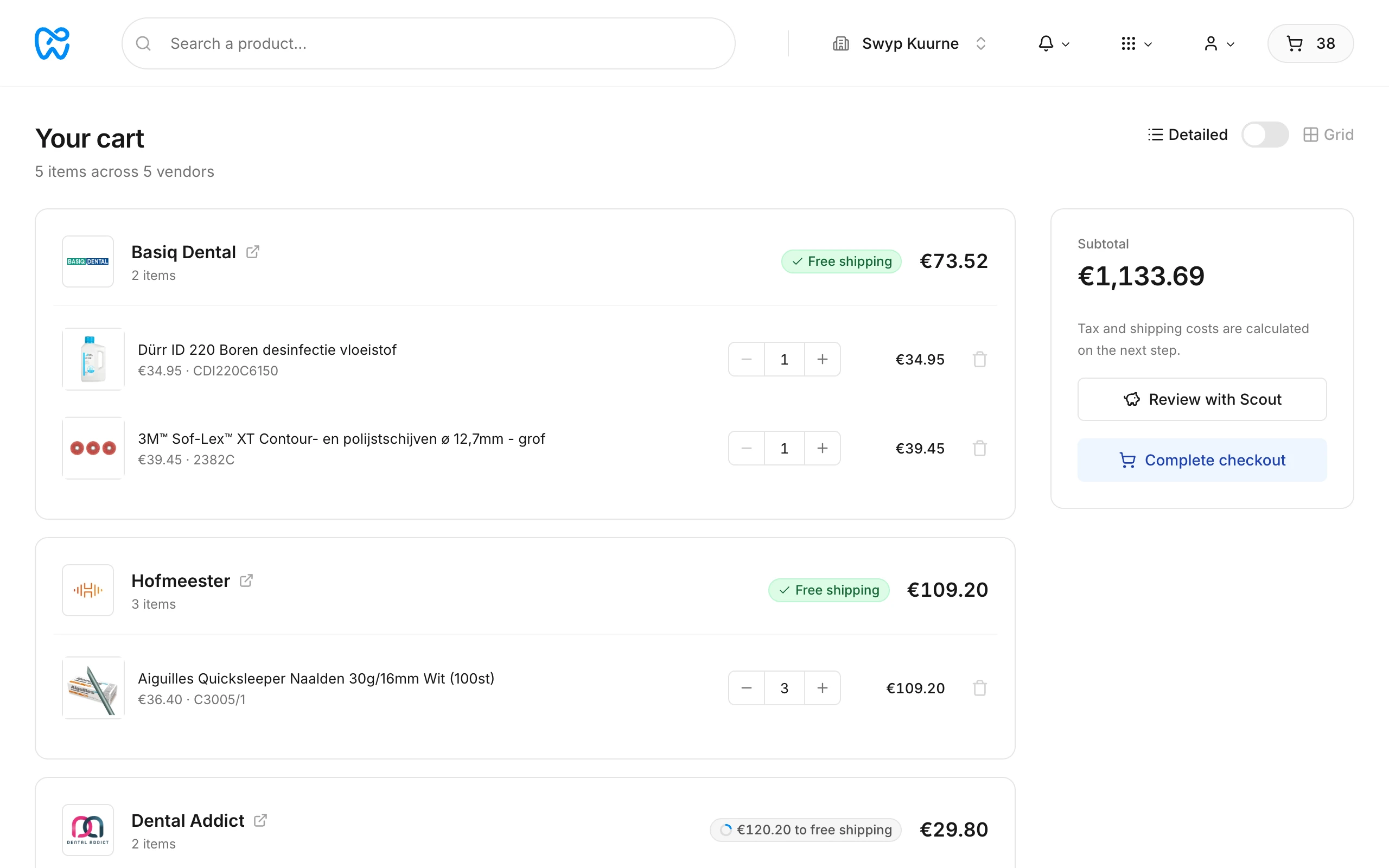
On a large screen, your cart is also always in the sidebar on the right, so you see it while you keep searching.
Change quantities and remove items
Change the quantity with the minus and plus buttons, or click the trash can to remove an item. Swyp also updates your cart on the supplier's website.
Shipping costs and free shipping
For each supplier, you see how much more you need to order until free shipping, or that you already have Free shipping. Some suppliers never ship for free; there it says No free shipping available.
Products Swyp doesn't recognize
If your cart at a supplier contains a product Swyp doesn't recognize, for example because you added it directly on their website, you see Unsupported product in basket. You then can't check out that supplier through Swyp. Complete that order on the supplier's website, or remove the product there.
If your cart is locked
While Swyp is placing an order for your practice, your cart is temporarily locked. You can't add or remove anything. This usually takes only a moment. Don't place your order yourself on the suppliers' websites during this time: Swyp also empties those carts as soon as the order has been placed.
Tip
Read next
New to Swyp? Try it free for 30 days. Create an accountSee pricing
Was this page helpful?
Last updated on