QR labels
Print QR labels for your cabinets and scan them with your phone's camera to go straight to the product and your stock.
You put a QR label next to a product in your cabinet. When you scan it with your phone's camera, the product page opens in Swyp, where you adjust the stock right away or order the product.
Print labels
On the inventory page, click the three dots and choose Download QR labels.
- Choose which labels you want: for all your products, or only for one storage location.
- Under Label Format, choose the format of your label sheets. Swyp supports several Avery sheets, such as L7163 with 14 labels per sheet.
- Click Download PDF and print the PDF on your label sheets.
To print a label for a single product, use the QR icon on that product's card.
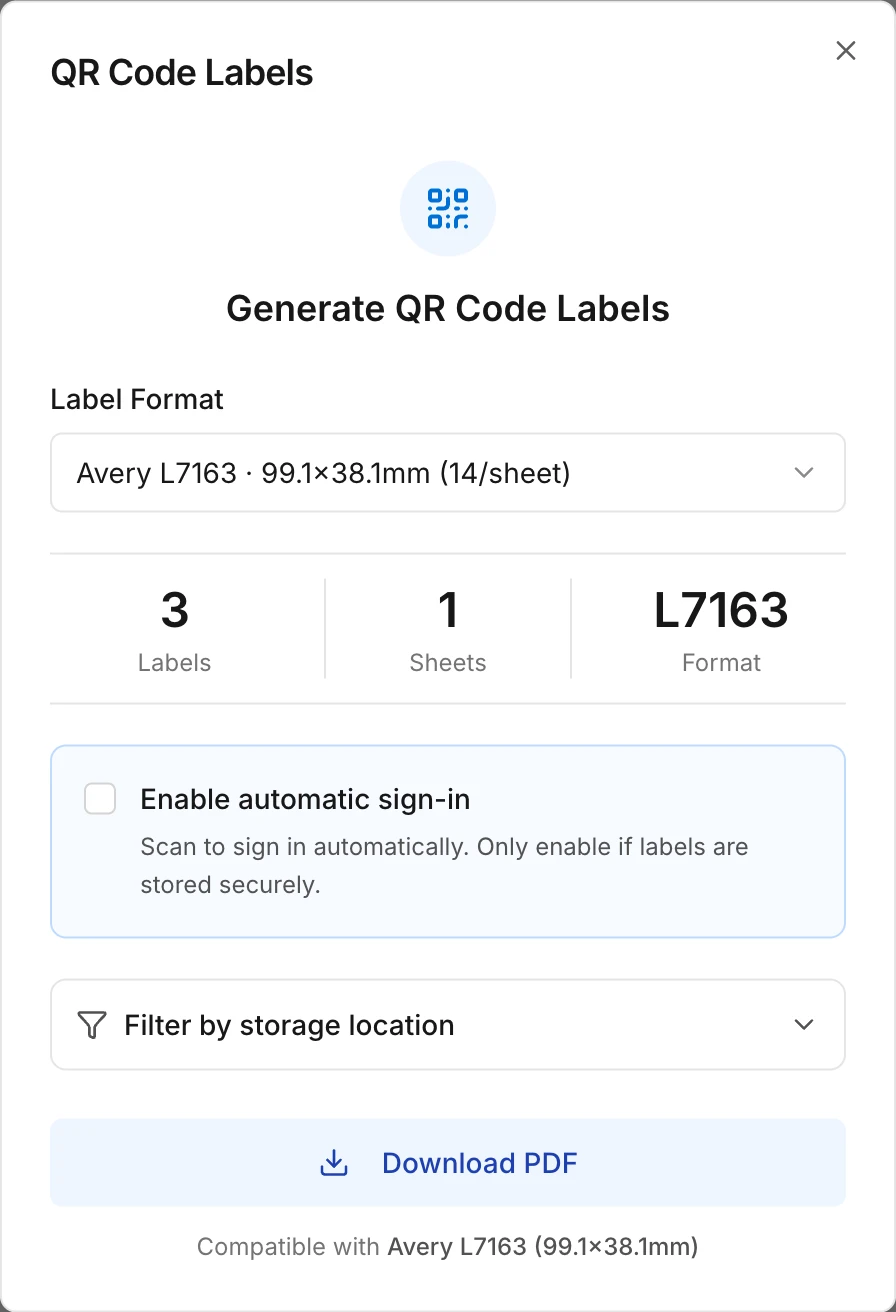
If you filter by a storage location, you only get the labels for exactly that location, not those of the sub-locations below it.
Scan a label
Open your phone's camera and point it at the label. Tap the link that appears. You land on the product page, where you adjust your stock with the minus and plus buttons. If you're not signed in to Swyp on your phone yet, you sign in first.
For a custom product, the label opens the link you entered for the product, or otherwise the product in your inventory.
Automatic sign-in
When you print, you can turn on Enable automatic sign-in. Anyone who scans such a label then goes straight into your practice, without signing in.
Note
Has a label with automatic sign-in gone missing, or are you moving them somewhere else? Then renew the QR token: go to Settings, open Practice and under QR code labels, choose the Regenerate button. All labels with automatic sign-in stop working immediately and you print new ones. Regular labels keep working. Only an admin can do this.
Read next
New to Swyp? Try it free for 30 days. Create an accountSee pricing
Was this page helpful?
Last updated on