Connect suppliers
Connect your supplier account to Swyp, so you see your own prices and order from that supplier in Swyp.
Swyp works with the accounts you already have with your suppliers. As soon as you connect a supplier, Swyp shows the prices you pay at that supplier, with your own discounts, and you order from them directly in Swyp.
Connect a supplier
Open your suppliers
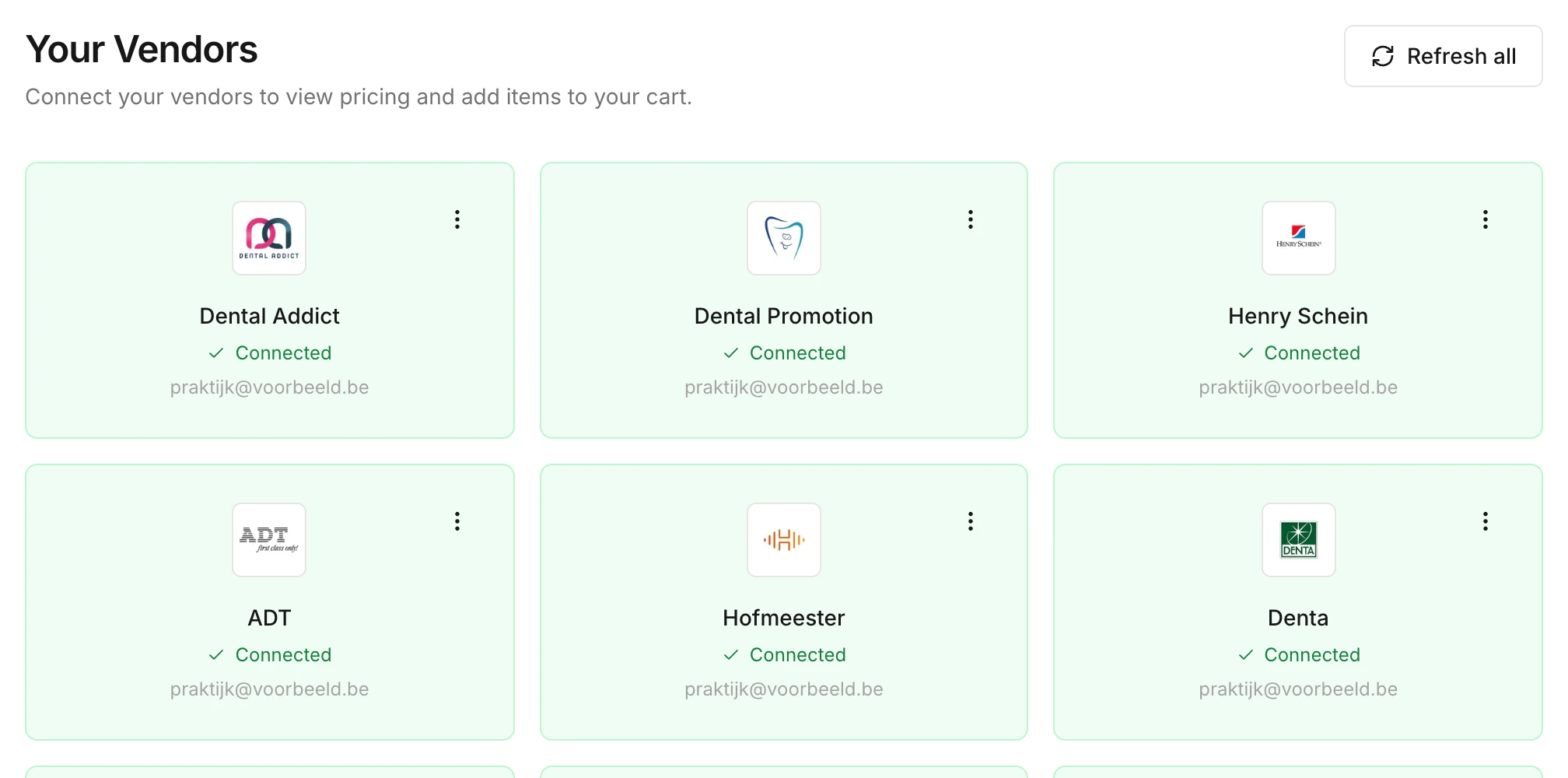
Click the account icon in the top right, choose Settings and open Vendors. You see a card for each supplier. Connected suppliers are green and show Connected.
Choose a supplier
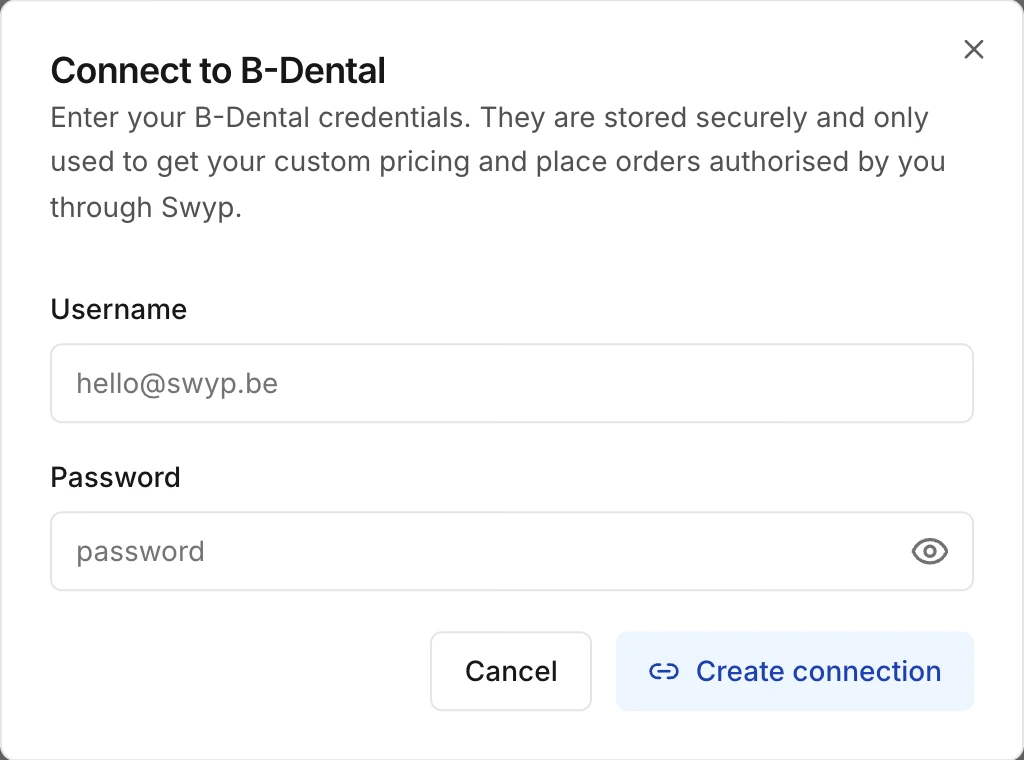
Click the card of a supplier that isn't connected yet. A sign-in window opens.
Enter your sign-in details
Use the same username and password you use to sign in on the supplier's website. Then click Create connection.
The supplier now shows as connected in your overview. From then on, you see your own price at that supplier when you search and on every product page. In the background, Swyp also fetches your past orders with that supplier, so your order suggestions know right away what your practice usually buys.
Tip
What Swyp does with your sign-in details
Swyp stores your username and password and uses them to sign in to the supplier on your behalf. That's how Swyp fetches your own prices and stock, keeps your cart at that supplier up to date and places the orders you confirm in Swyp. Those orders then also appear in your order history on the supplier's website.
Once saved, Swyp never shows your password again, not even to your team members.
Change your sign-in details
If you changed your password at a supplier, change it in Swyp too. Otherwise Swyp can no longer sign in and you won't see prices from that supplier.
Open the supplier's menu
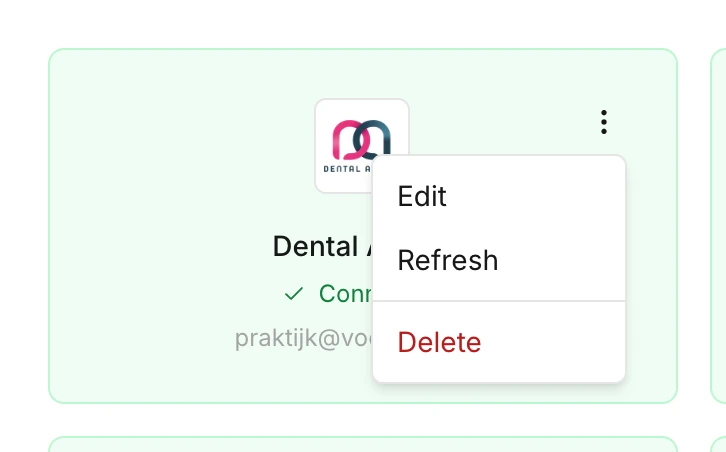
In Vendors, click the three dots in the top right of the card and choose Edit.
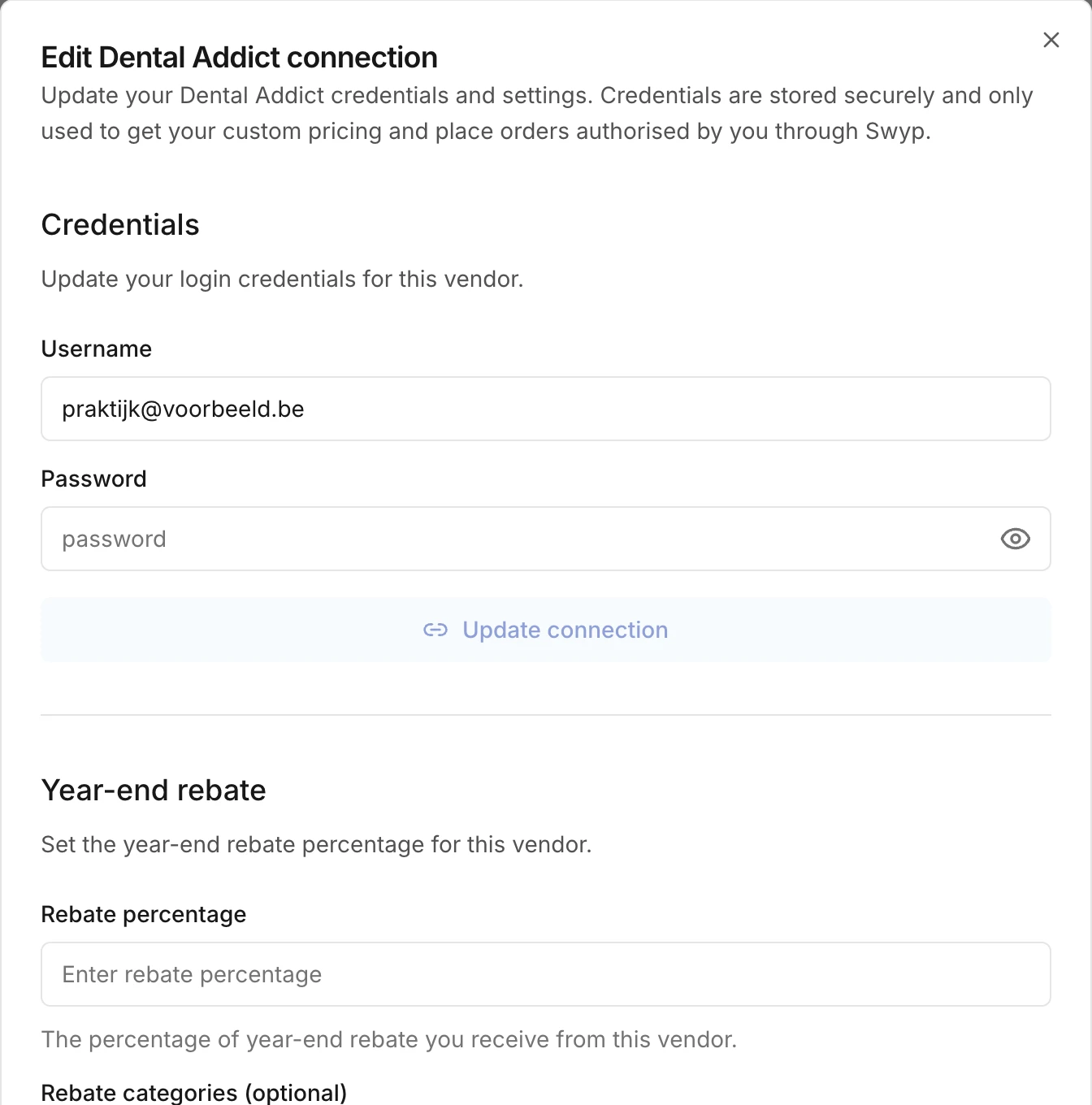
Do you get the message Authentication failed? Then the password Swyp has stored is no longer correct. Update it as described above.
Set a year-end rebate
Admins only Does a supplier give you a rebate at the end of the year on what you bought from them? Enter that percentage, and Swyp shows the price at that supplier after your rebate on the product page.
Open the supplier's menu, choose Edit and enter the percentage under Rebate percentage. If the rebate only applies to part of the range, check the categories it applies to. If you leave them all empty, the rebate counts for everything you buy from that supplier.
Refresh a connection
Are the prices or your cart not loading properly for one supplier? Open that supplier's menu and choose Refresh. Swyp then signs in again with your stored details. If it goes wrong with several suppliers, click Refresh all at the top.
If that doesn't solve it, contact us.
Disconnect a supplier
Open the supplier's menu and choose Delete. The connection is removed right away, without asking you to confirm. You then no longer see prices from that supplier and can no longer order from them through Swyp. Your account with the supplier itself still exists, so you can connect the supplier again later.
Read next
New to Swyp? Try it free for 30 days. Create an accountSee pricing
Was this page helpful?
Last updated on