Track your inventory
Keep track of how much of a product you have on hand, set a minimum and maximum, and see right away what's running low.
With Inventory, you track how much of each product you have on hand. If you set a minimum, you see right away what's running low, and Scout can restock it for you.
Track a product
You start tracking a product from the product page, not from the inventory page.
Open the product
Search for the product and open the product page.
Click track inventory
Below the photo, click Track inventory.
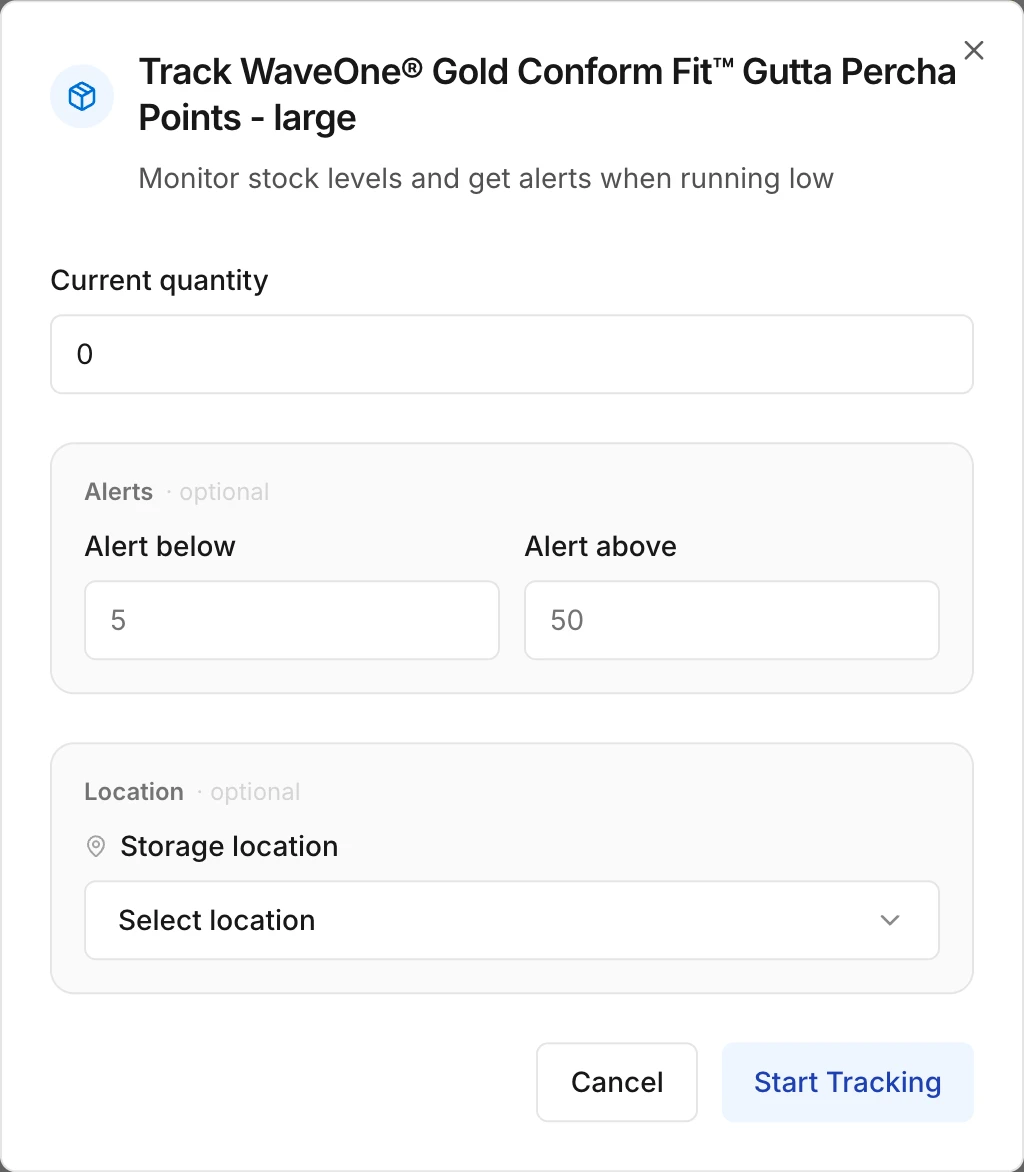
Enter your stock
Under Current quantity, enter how many you have now. Under Alerts, you can optionally set a minimum and a maximum, and you can choose a storage location. Click Start Tracking.
If you already track a product, the product page shows a minus and a plus button so you can adjust your stock right away.
Add a custom product
Do you buy something outside Swyp, such as copy paper or gloves from another store? Then track it as a custom product. On the inventory page, click the three dots and choose Add custom product. Only the name is required. You can also enter a category, unit, barcode, your stock with a minimum and maximum, a storage location and where you buy it.
You order custom products yourself; Scout doesn't include them.
View your inventory
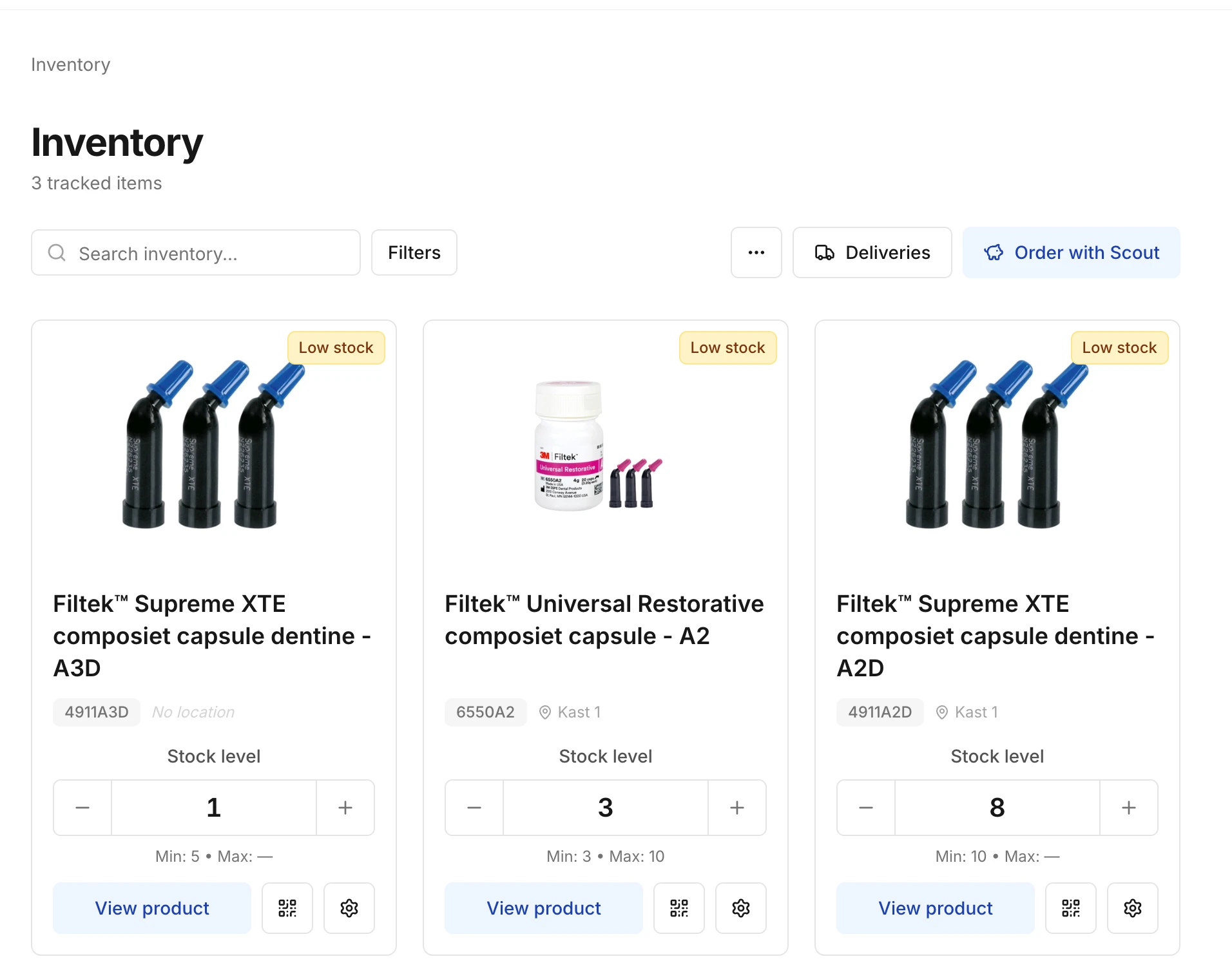
Open Inventory from the menu at the top. You see a card for each product, with the stock level, the storage location and a label if something needs attention:
| Label | When |
|---|---|
| Out of stock | Your stock is at 0. |
| Low stock | Your stock is at or below your minimum. |
| Overstock | Your stock is above your maximum. |
Adjust your stock with the minus and plus buttons. Swyp saves the change automatically after a few seconds.
Search by name, item number or brand, or click Filters to filter by stock status or storage location.
Change the minimum, maximum or location
Click the gear icon on the product's card. There you change the minimum, the maximum and the storage location.
Stop tracking a product
Click the gear icon and choose Stop tracking. Swyp then forgets that product's stock level, minimum, maximum and location. You can track it again later.
Update your inventory after a delivery
If you order through Swyp, you don't need to adjust each product separately after a delivery. Count your delivery in Swyp and your inventory updates itself. See Confirm deliveries.
Read next
New to Swyp? Try it free for 30 days. Create an accountSee pricing
Was this page helpful?
Last updated on