Favorites and lists
Save products as favorites or in your own lists so you find them quickly, and use the built-in lists Swyp keeps for you.
Favorites and lists help you find products you often need. They belong to your practice, so your whole team sees the same favorites and lists.
Save a product as a favorite
Click the heart on a product, Add to favorites. Click again to remove it. You find your favorites under Lists.
Add a product to a list
Click Add to list on a product. Choose the list, or create a new one right away. In the same window, you can also remove a product from a list.
Manage your lists
Open Lists. Click New list to create a list, for example for each treatment room or each type of treatment.
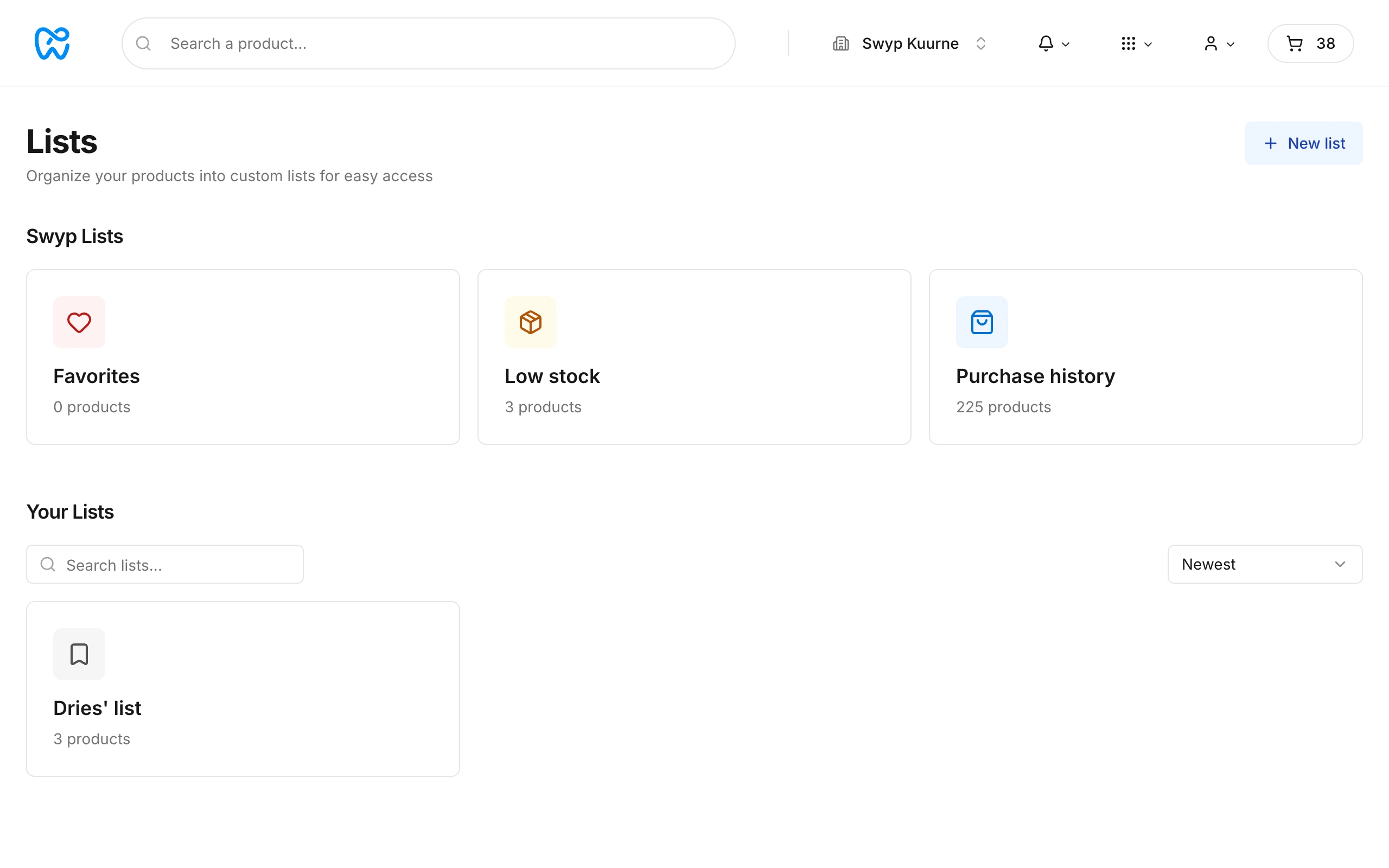
With the three dots next to a list, you can:
- Pin to top, so it always stays at the top
- rename it
- delete it
Deleting a list doesn't affect your inventory or your cart. You can't undo it, though.
Swyp's built-in lists
At the top of Lists are three lists that Swyp keeps for you:
- Favorites: everything you saved with a heart.
- Low stock: what's running out. See Low stock.
- Purchase history: everything you bought through Swyp. See Purchase history.
Tip
Read next
New to Swyp? Try it free for 30 days. Create an accountSee pricing
Was this page helpful?
Last updated on